How do I connect my mobile devices?
Last updated: September 27, 2025
Caesr is designed to run your workflows seamlessly across all your devices—desktop, mobile, and web. Connecting your mobile devices allows Caesr to interact with your native mobile apps and mobile web browsers just like a human user would.
The connection process differs slightly between Android and iOS devices.
Connecting Android Devices
Connecting your Android device is a straightforward process using the dedicated guide. If you already have setup ADB, you can connect the Android device via USB to the device running the Caesr application.
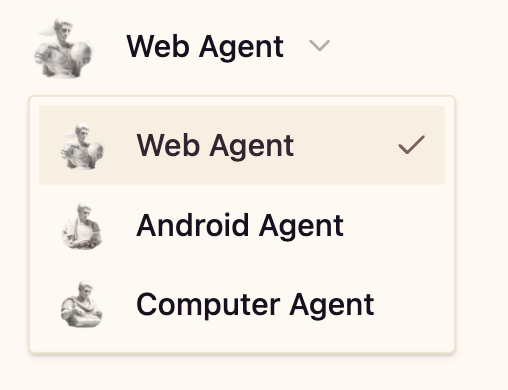
After that chose the Android agent in the agent list for getting started.
Connecting iOS Devices
Connecting iOS devices to Caesr requires a customized installation process due to the unique security and operating system requirements of Apple's ecosystem.
Custom Installation Required: Unlike Android, setting up an iPhone or iPad to work with Caesr involves a specific, non-standard installation. Specifically, you need a hardware device for keyboard and mouse simulation such as a KVM switch (https://en.wikipedia.org/wiki/KVM_switch)
Contact Support for Assistance: To ensure a successful and secure connection, you need to reach out directly to the Caesr support team.
Action Required:
Please send an email to support@askui.com with the subject line "iOS Device Connection Request."
The support team will provide you with the necessary customized installation steps and guide you through the process to enable Caesr to control your iOS device for your automation and testing needs.