Caesr Desktop is running but I still see the unable to connect screen in app.caesr.ai
Last updated: November 14, 2025
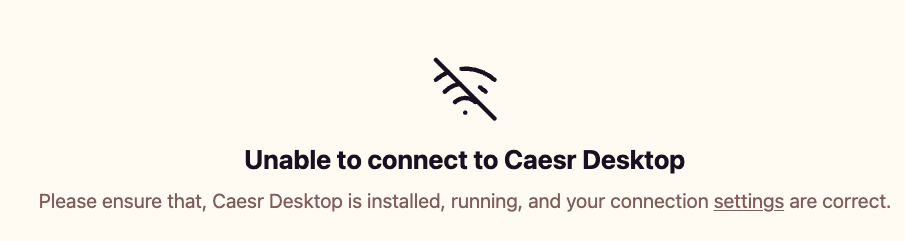
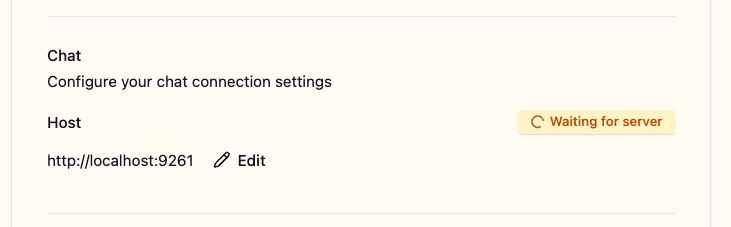
You can check wether the Caesr (Web) App can connect to Caesr Desktop by heading over to Settings. If it says Waiting for server (instead of Connected) in the Chat section, you are not yet connected and if it persists, you may have problems to connect. Then, this guide here is for you.
General
The first thing to check on your side is if Caesr Desktop is running. It is is running, restart it and wait for some time. Otherwise just start it and wait for some time. Under some machines, it may take up to 10 minutes for the Caesr (Web) App to be able to connect to Caesr Desktop. We are actively working on improving upon this. If after 10 minutes, you can still not connect, continue with the following instructions or contact us through the message widget somewhere on this page (usually, in the bottom right hand corner).
Using Microsoft Windows (Operating System)
Missing or outdated Microsoft Visual C++ Redistributable
Caesr Desktop relies on the Microsoft Visual C++ Redistributable being available and up to date.
What is Microsoft Visual C++ Redistributable? It's a collection of tools and code libraries that many Windows programs need to run properly. Developers use Microsoft's programming tools (Visual C++) to build their software, and those programs need certain "ingredients" to work on your computer.
How can I make sure I have it installed and it is up to date? The easiest way is to head over https://learn.microsoft.com/en-us/cpp/windows/latest-supported-vc-redist?view=msvc-170#latest-supported-redistributable-version and download and install the latest version for your architecture. If it is already installed and up to date, nothing is going to change as the installer can detect that.
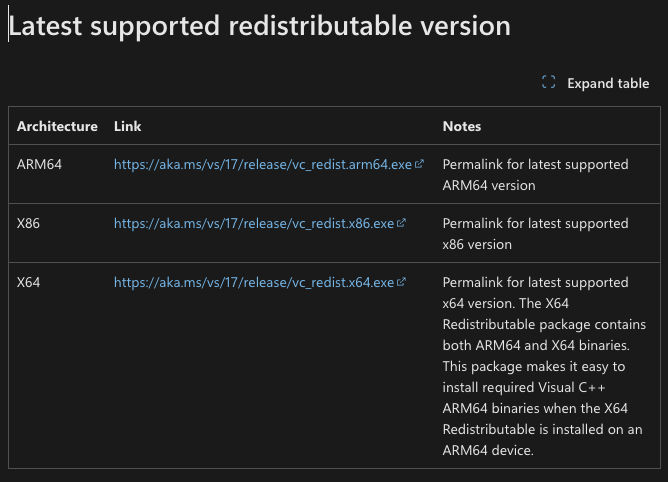
If you are unsure which architecture you have, head over to Settings on your machine. You can find the architecture under System > About where it says System type. It will say something like x64-based processor (the most common one) or x86-based processor or arm64-based processor. Depending on that choose the link to download the Redistributable from.
After having installed the Redistributable, restart your device and restart Caesr Desktop. After a while of waiting - on some devices it can take up to 10 minutes - we are actively working on this problem - you should see inside the Caesr (Web) App a button for creating a new conversation and under Settings it should say Connected.
Using Google Chrome (Webbrowser)
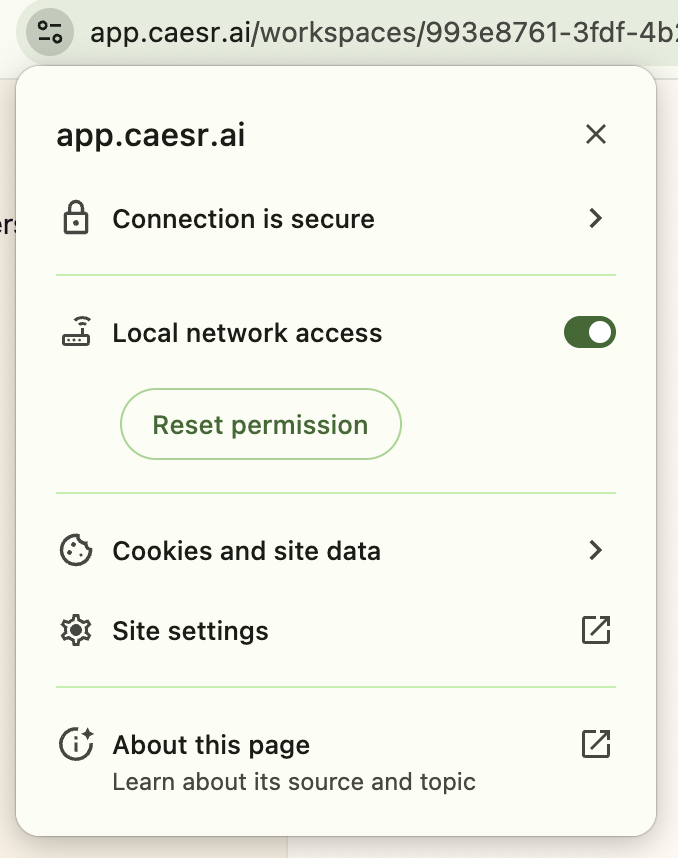
If you are using Chrome browser it may prompt or may have prompted you to allow caesr.ai to connect to your local system. This is necessary for us to automate your computer.
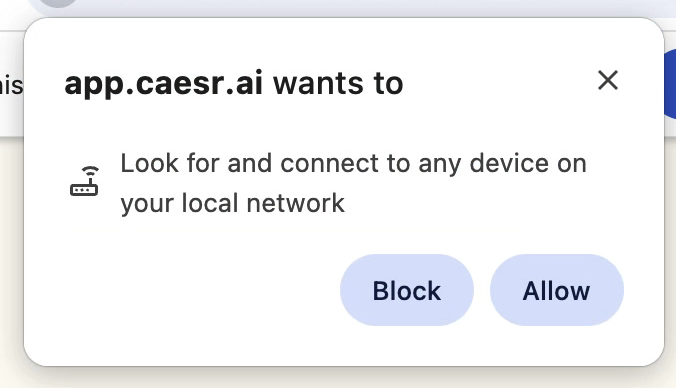
If you already canceled this window or clicked on Block, you can find the setting via the Site information button and allow Local network access. Make sure it is switched on.
Using Brave Browser (Web Browser)
We encountered an issue. Please consider switching to Chrome or Edge for a better experience.